A Walk Through My Claude Code Workflow
Intro
If you follow me on Twitter/X you can see I'm posting a lot about Claude Code. Because of that my feed is mostly about people using Claude Code, sharing tips & tricks, etc., so it makes me assume that Claude Code is now a more or less known tool.
However, when I talk to some friends or friends of friends I realize that most people haven't tried Claude Code (or similar tools) and don't really know how to use them nor what they can do.
Because of that I decided to write this post and show my Claude Code flow: how I plan, execute, review and take notes with Claude Code. I'll be sharing some screenshots in this article, and I'll also be posting a full video walkthrough on Twitter in the coming days.
The app: Scully Facts
In order to prepare this article I was trying to come up with ideas about apps that would be not-that-complex and kind-of-useful. I realized I was using AI to fact check statements quite often, so thought "why not an AI fact checker"? And if it is a "search the web" AI app, Perplexity seemed like the right AI to use.
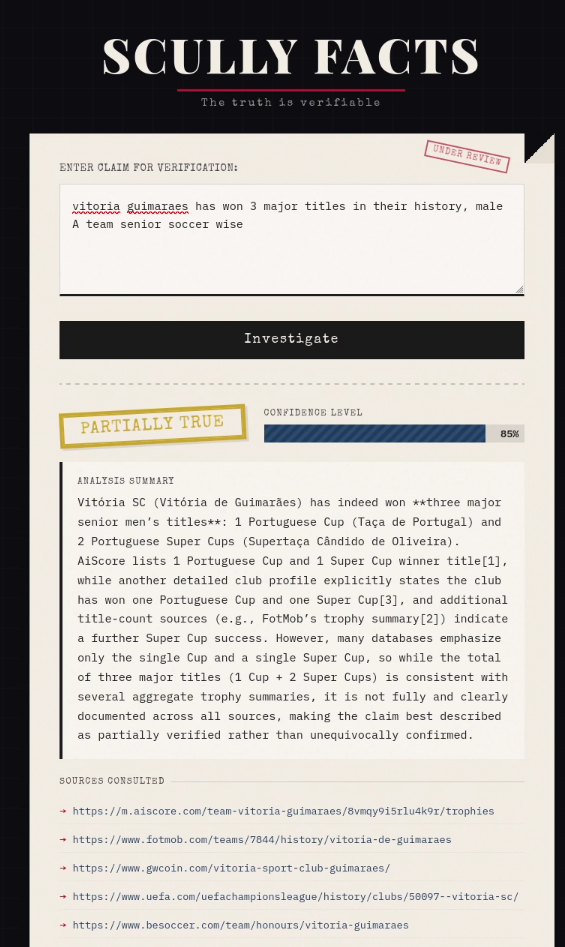
That's how Scully Facts (yes, the name is referring to the character Scully from X-Files) idea was born. It's a super simple app in which you write down a claim and then Scully will use Perplexity SDK to fact-check it on the internet.
You can check the final source code of Scully Facts here and you can also try the app here.
The Workflow
This isn't necessarily the most efficient way to use Claude Code, but it's my way. I've been iterating on this workflow for a while and it works well for how I think.
Setting Up Context
When I'm going to ask Claude Code to develop something based on a specific tool (in this case, Perplexity SDK) I like to prepare a bit first: I go online and pull the official documentation for the version of the tool we'll be using.
I do this because the LLMs (in this case, Opus 4.5) were trained with past versions of the tools/technologies, so whatever knowledge it has by default might be outdated. And, quite often, there are newer releases with breaking changes that Claude Code doesn't know about.
By feeding the documentation to Claude, we guarantee it knows what are the latest features and how to use the tool.
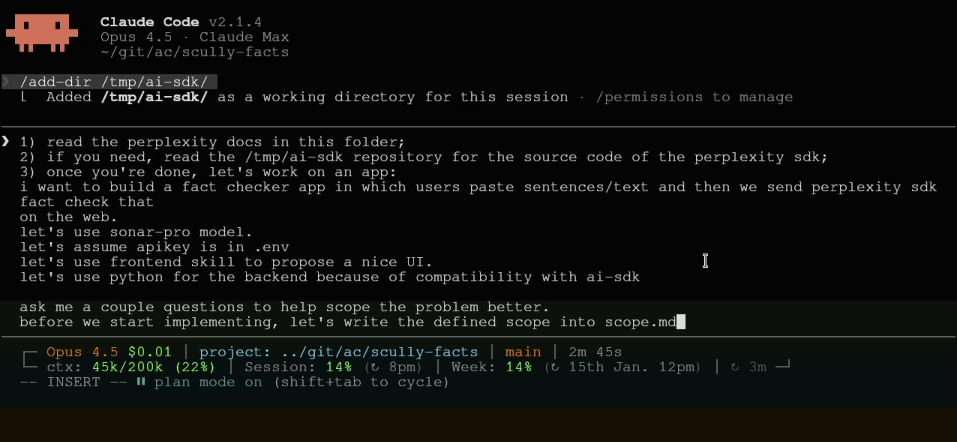
Another trick I've learned over the last 3 years of using AI tools is that it helps a lot to ask the AI to ask you questions to gather more information about the problem you're trying to solve. The AI output will be as good as the input you give it and, more often than not, we tend to assume that the AI can read our thoughts and will magically know what we want. Instead of coming up with prompt techniques that make us write a huge prompt with all the information, it's usually enough to just describe the problem a bit and ask the AI to ask you questions to retrieve more context from you.
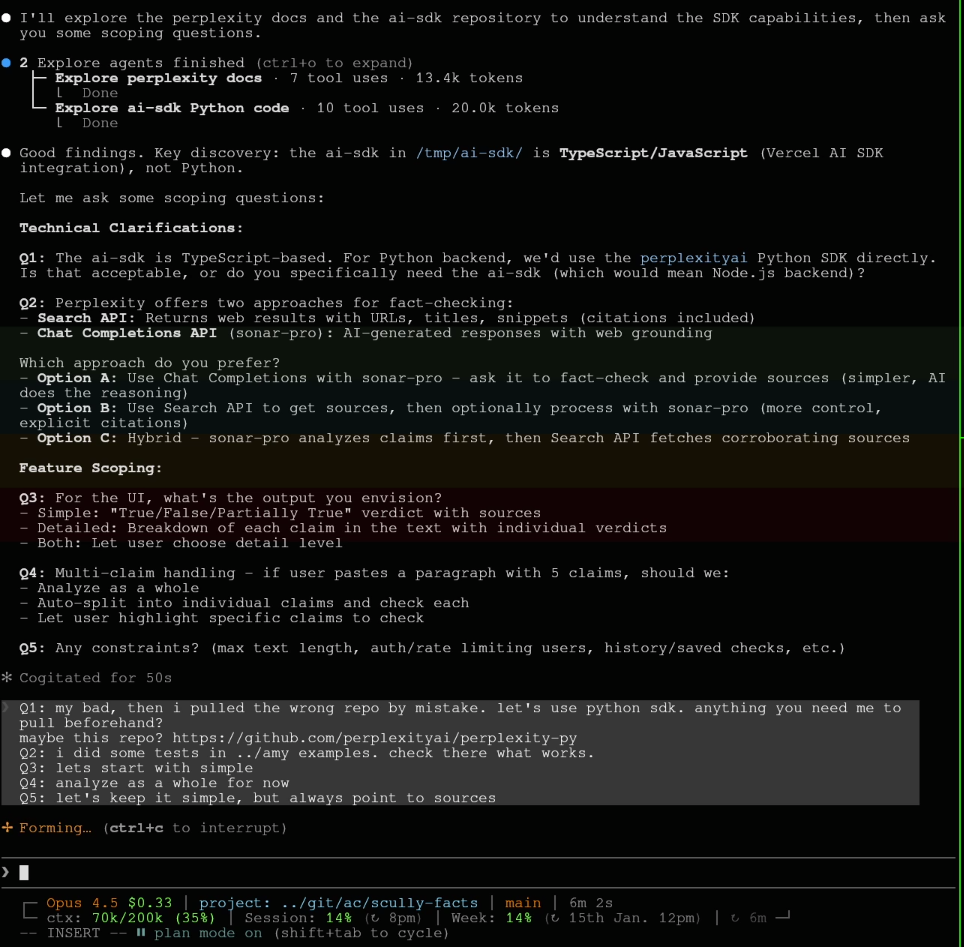
After reading the docs and thinking about the problem, Claude came up with a couple of questions to understand the problem better:
Plan Mode
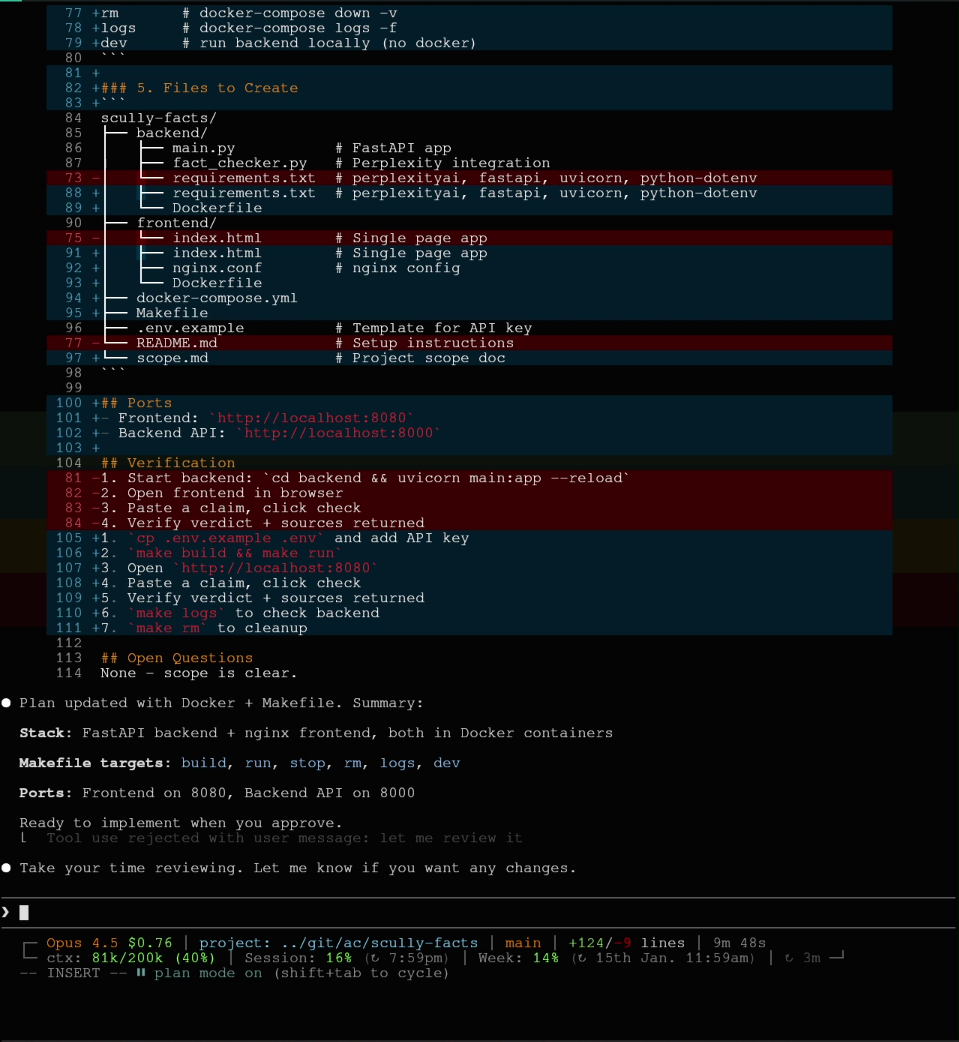
One of my favorite features of Claude Code is the "Plan Mode" (which you can get to by pressing shift+tab). If you look closely to the screenshots above, you can see "plan mode on" at the bottom of the status line.
I love this feature because it tells Claude to create a plan on what it is going to do BEFORE it actually does it. This way, we can have a look at the plan (you can run /plan open inside Claude to open the file, or check it directly in the ~/.claude/plans/ folder) and see if Claude is on the right track or not. If we don't like the way it is solving something, we can just edit the plan (or tell Claude to do so) and change whatever we need to change.
For me, it's quite common to spend more time creating this plan file than actually implementing whatever needs to be implemented. Because once the plan is properly defined, the implementation is much easier.
Implementation
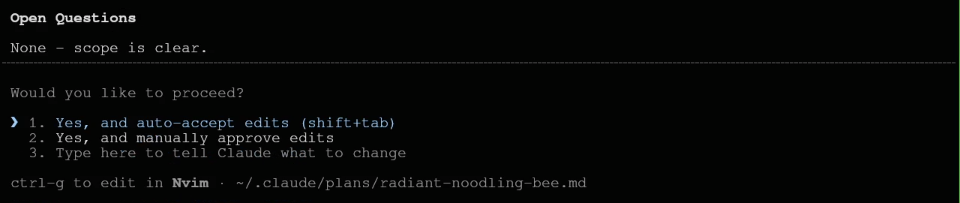
Once we're happy with the plan, we can press the option to proceed and "auto-accept edits". This way Claude can start implementing whatever the plan says and edit files right away, without having to ask us for edit permissions every time.
If you prefer, of course you can select "manually approve edits". This will give you more control over changes.
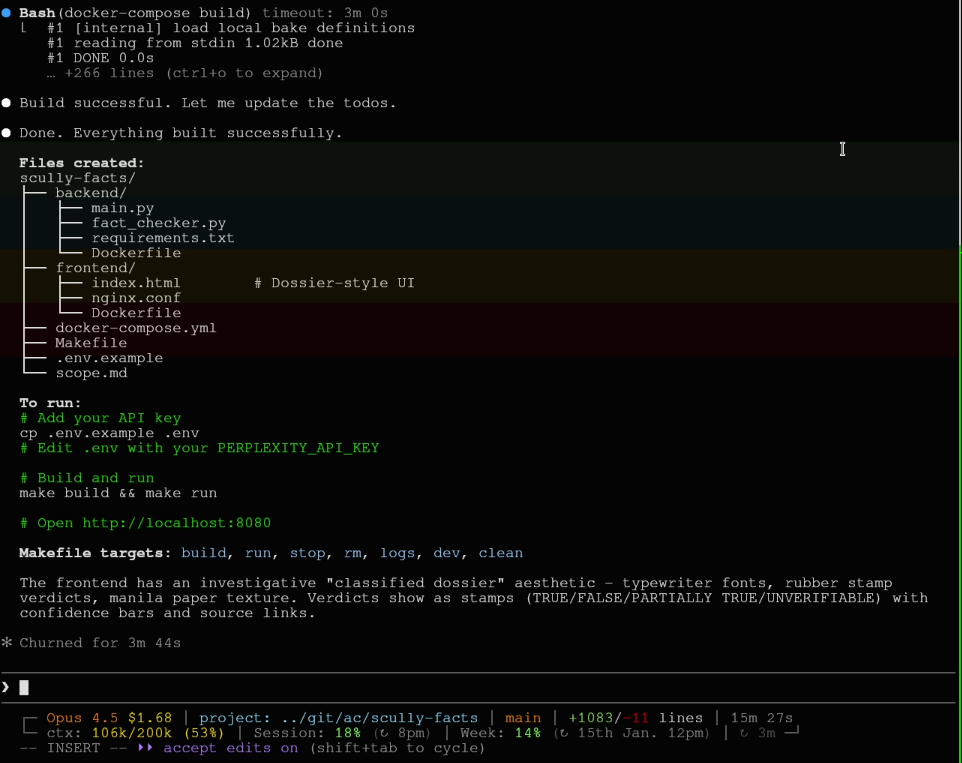
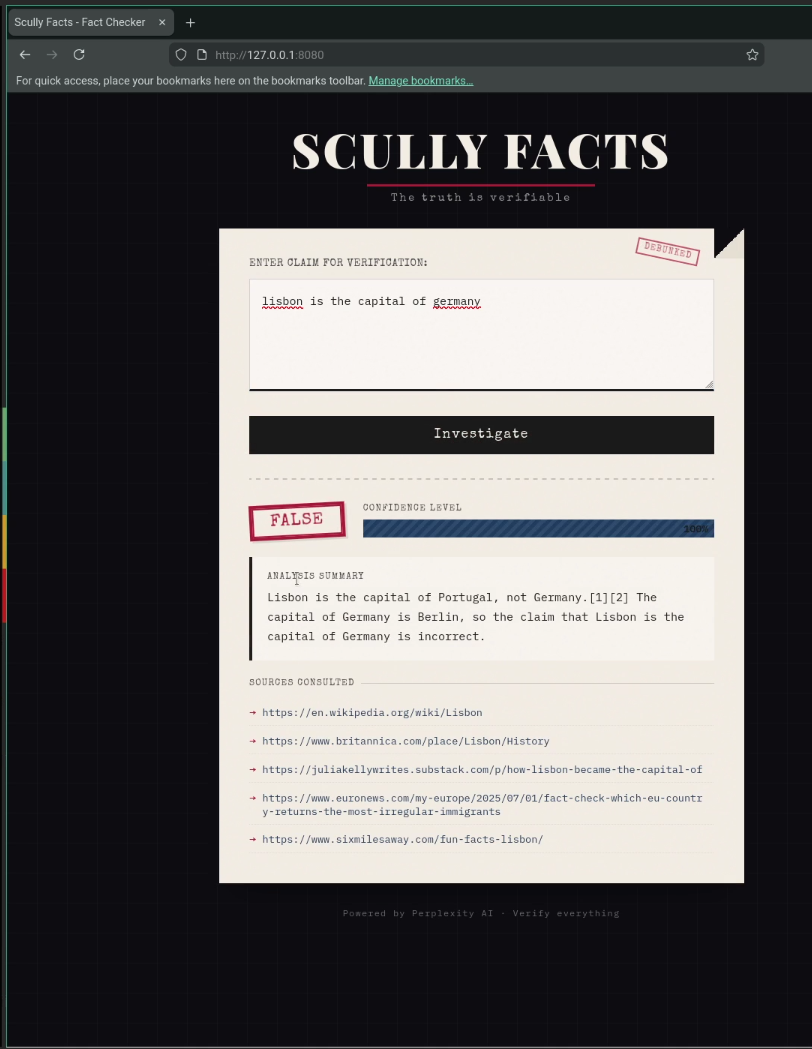
After ~4 min of work time, Claude successfully built the application and was ready to let us have a look. I then opened the app and tried it and could verify it was, indeed, ready to be used. At least this first version :)
(note: in one of my tests I asked Scully about something that had just happened 24h before and it successfully validated that on its web search)
PR Review
Before committing, I run /pr-review. This is a custom skill I use that will tell Claude to review the changes.
I like to run it in a new Claude conversation so that it is not biased by the ongoing conversation.
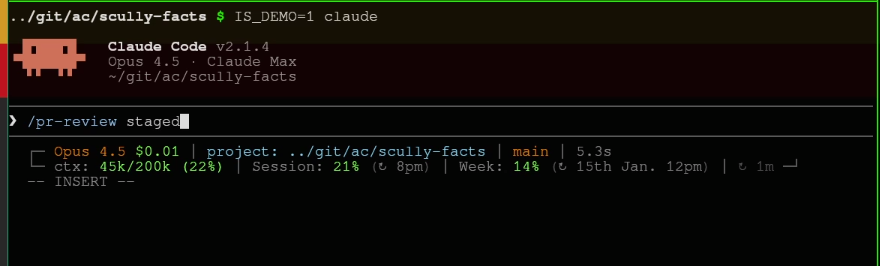
After ~1 min, Claude finished its review.
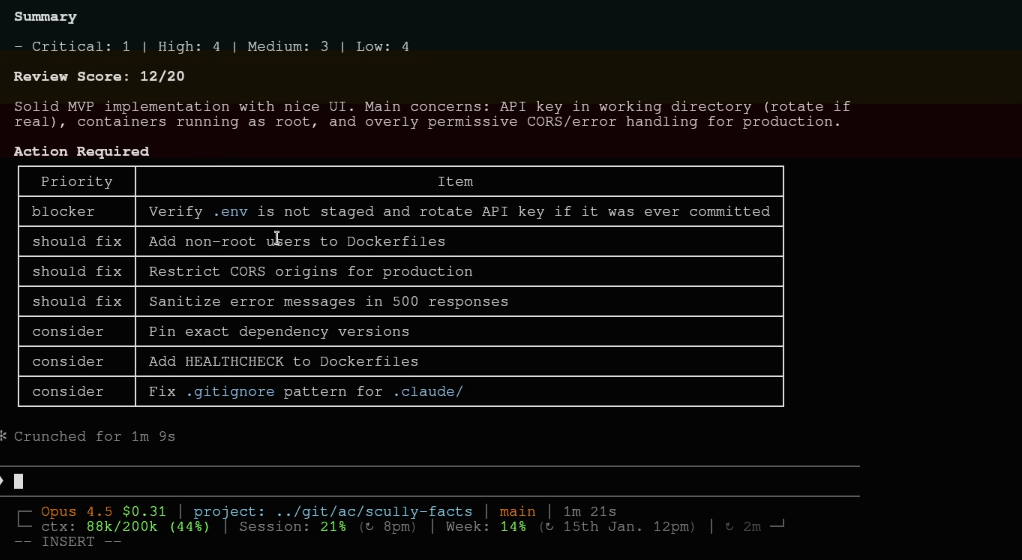
Then I took a screenshot of the PR-review output and sent it to the other Claude instance running.

After some back & forth we finally got to a point in which the review comments were implemented and the app was running healthy again.
As a note, the pr-review skill should probably use Codex (OpenAI's CLI tool) to make the review. Using the same model to write and review the changes will make us very exposed to the model bias, even if using different context windows. It's something to change in the future.
Note Taking
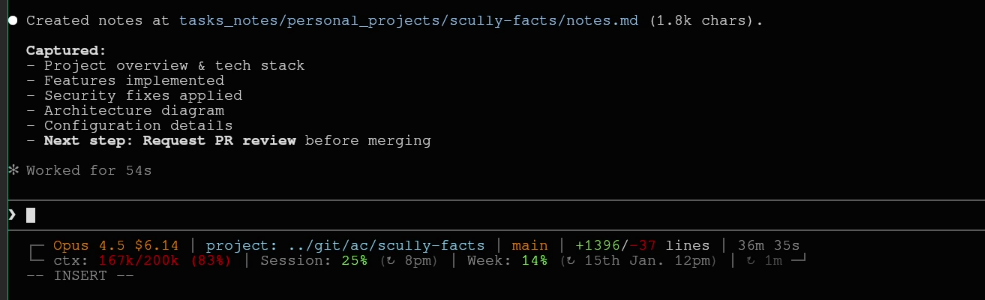
After the session, I use /note-taking to capture what we learned. Notes go into my Obsidian-compatible folder structure (see my previous post about building a knowledge base with Claude Code and Obsidian).
Why this matters:
- Captures decisions and context that would otherwise be lost
- Future sessions can load this knowledge
- I don't have to re-explain the project next time

After ~1 min, Claude finished taking notes.
Loading Context in New Sessions
Next time I work on this project (or something related), I use /user:context to load relevant notes. Claude starts the session already knowing what we did before.
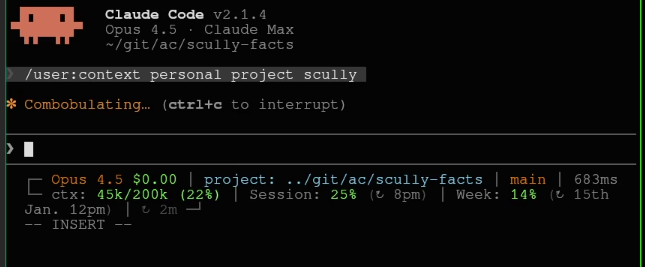
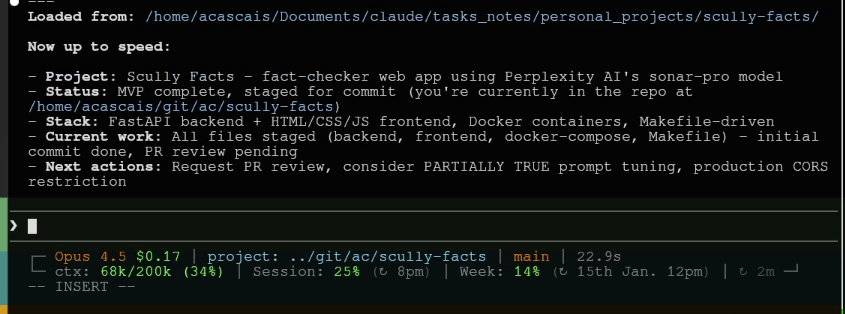
And just like this, we can pick up where we left from.
Conclusion
This post described more or less what's my flow when using Claude Code. There are people that use different techniques with Claude, at the moment I use these ones. It might not be the best way to use Claude, but it is my way. And it's been working fine so far, I'm happy.
However, I'll always keep an open mind and look out for better ways to work with Claude Code (or any other AI tools). Probably if I revisit this post in a year from now, my flow will be different. And that's good.
If you have any questions/comments feel free to reach out via email (see below) or via Twitter/X (still can't call it X, I'm too used to Twitter branding).
I'll also be posting a full video walkthrough of this session on Twitter/X soon.
Also, I have 3 free Claude Code passes: each gives access to 1 week free of Claude Code. If you're interested in having one, reach out!